

Where they come from
From the server, about you. Something moved in a process you are part of: a request to end protection agreed or denied, its wait being over, a handover moving, someone joining your circle, your subscription ending, a keyholder or supporter stepping away, your keyholder answering a request to end a Lockdown sooner. And one note when Deletion delay has finished turning off, because that release lands on the server and the phone would otherwise have no way to tell you it had. Tapping one opens the surface it belongs to.
From people. A nudge or a payment reminder from someone who supports you, and from the people you support, an ask for support, a request to end protection or a Lockdown, an alert when their protection turns off or their phone goes quiet, their milestones, and word that their protection is ending, never why. These travel through the server too, and the switches on the page govern the news among them.
From your own phone. The trial reminder, scheduled on the phone that bought, three days before a free trial ends. A daily check in reminder, at a time you can change. And Motivation, lines in the voice of the block screen pack you chose, which ships switched off and is adopted in Settings or not at all.
One page in Settings
Everything arrives through the same iOS notification centre, and Settings › Notifications is the one page that governs it. At the top is a master switch. Turning it off stops the phone asking iOS for permission, routing taps anywhere and scheduling the check in reminder, motivation and the trial reminder, and the server then sends none of the four kinds of news under it.
Under it, the group From your people opens with Requests, which reads Always and has no switch: asks for support and requests to end protection or a Lockdown never depend on a switch to reach you, and the line under the master switch says so. Then come four switches: Encouragement, Reminders, Milestones and Protection ending. Each is read on the server before it sends, so turning one off keeps that kind out of Notification Center; the fact is still in the app. While the master switch is off, these four show off and cannot be changed, and the server sends none of them; what you had set is kept, and applies again when you turn the master switch back on. Under Your reminders, the daily check in reminder and Motivation are doors to their own screens. On an account that only supports others, Encouragement, Reminders and Your reminders do not show.
Quiet by default, and how to change it
Fold’em asks iOS for provisional authorization first, which is the tier that needs no permission dialog and delivers straight to Notification Center with no sound, no banner and nothing on the lock screen. That is the floor, and for a device that never answers anything it is permanent. It is a deliberate choice: a self exclusion app that opened with a permission prompt would spend the prompt before it had shown you a single thing it might send.
The app asks for full delivery exactly once, at a screen near the end of setup that shows you example notifications before it asks. Allow notifications raises the real iOS dialog. Not now raises nothing at all, spends nothing, and leaves the prompt available later. If you tap Don't Allow inside Apple's dialog, iOS will not ask again from an app, so the app sends you to the iOS Settings page for Fold’em instead of trying a second time.
For everyone that screen never reached, and everyone who said Not now, the same prompt stays one row away, under the master switch on Settings › Notifications, while delivery is still quiet. It disappears once authorization is full, because then there is nothing left to do.
Changing what you get
-
Settings, then Notifications
The master switch sits at the top, Requests and the four switches for news from your people under it, and the daily check in reminder and Motivation at the foot.
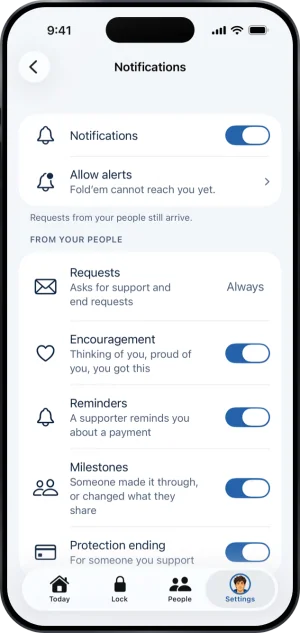
The Notifications page
-
Allow alerts, while delivery is quiet
While delivery is still quiet, a row under the master switch, Allow alerts, raises the real iOS prompt, and it goes away the moment you grant it, without you leaving the screen. If iOS has already been told no, the row opens the iOS Settings page for Fold’em instead, because iOS will not ask again from inside the app.
-
Turn a kind off, or all of them
A switch for one kind keeps it out of Notification Center; the fact is still in the app. The master switch stops all four kinds, and on the phone its own reminders and motivation, taps routing, and asking iOS for anything. Requests still arrive.
What this does not do
No notification changes anything. They are display only: a push cannot open an app, shorten a wait, agree to end protection or turn a shield off, and the server would refuse the instruction even if one carried it. Delivery is best effort, so a push can arrive late or not at all if the phone is off or offline, and the app reconciles the real state when you open it rather than trusting what a notification said. Your switches decide only what reaches you: nothing about them reaches anyone else, and they change nothing about what the people in your circle are sent.
Write to us and a person reads it. We answer within two working days, and we would rather hear the question twice than not at all.