

The full answer
All four are about how this phone behaves, and none of them reaches the block, your protection, your circle or your subscription. That is the line the section is drawn along: everything that can change your protection lives somewhere else, behind a keyholder or a wait. You can change all four at any point while protection is running, as often as you like.
The four rows
Haptics is a switch, on by default, and it governs every tap Fold’em can make: the tick when you change a setting, the beat at a commitment, the buzz at a destruction. It does not silence iOS anywhere else, and it is not tied to Reduce Motion.
Share usage counts is a switch, on by default, for the anonymous usage counts Fold’em keeps, such as how far setup gets and how often SOS opens. They carry no name and no free text, and turning the switch off stops them from that moment.
SOS shows what SOS opens on, Guides or Breathing, and pushes to its own page. There, Default experience offers Guide library or Breathing exercise, and Shoreline, quiet waves under the voice, stays off unless you turn it on.
Block screen pushes to a picker and shows which wall is in use as its trailing value, which reads Default until you change it.
Your character and Motivation are not here. Your character is the card at the top of Settings, and the face you choose there is the one your circle sees in their app. Motivation is a door under Your reminders on the Notifications page. On an account that only supports others, Preferences holds Haptics and Share usage counts alone.
Choosing the block screen
The block screen is what a blocked app shows instead of opening. Seven walls exist: six written packs, named Default, Roast me, Soft, No excuses, Make me laugh and Keep me honest, and a seventh you write yourself. Default holds one line and shows it every time; the other five hold five to eight, and the wall draws one of them at random on each appearance, so the same app does not always read the same.
The picker is a carousel of real previews, one per pack, with dots under it. Select in the top right takes the wall you are looking at and appears only while that wall is not the one already in use. Customize opens the wall you are paging through, whether or not it is the one in use, which is what lets you look at one before committing to it; the wording editor for your own wall is one row inside there.
Changing the wall changes nothing about what is blocked. The list of blocked apps, the sites, Games and your protection are all untouched by it, which is why the row sits in Preferences beside the other device switches rather than on the Lock tab.
Finding them
-
Open the Settings tab, then Preferences
Preferences is a row in the group with Notifications and What your people see, and it opens the page that holds these four.
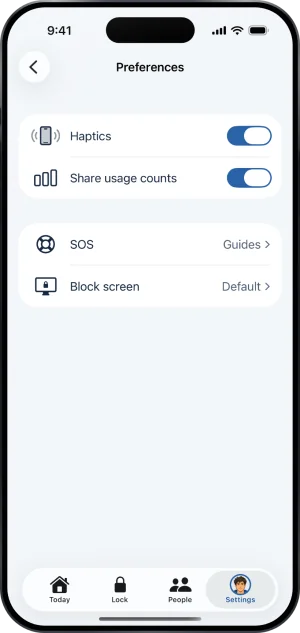
Preferences, in Settings
-
Switches take effect where they stand
Haptics and Share usage counts change the moment you flip them, and there is no save button anywhere on this page.
-
The other two open their own pages
SOS and Block screen open pages of their own, each with its choice made where the choice is. Coming back to Preferences shows the new value on the row.
What this does not do
Nothing in Preferences weakens the block. There is no switch here that unblocks an app, opens a site, shortens a wait, ends your protection or removes a keyholder, and there never will be: a self exclusion tool with an off switch in its settings is not one. Turning haptics off is not a Reduce Motion setting, and does not silence anything outside Fold’em. Changing the block screen does not change what is blocked. None of the four reaches anyone else's phone, and none of them is a change to your protection.
Write to us and a person reads it. We answer within two working days, and we would rather hear the question twice than not at all.